
VR - VIRTUAL REALITY
Using Virtual Reality (VR) allows customers to experience a boat with a full 360° view, helping them feel as though they are standing onboard. They can move around the boat using a laptop, phone, or VR headset to explore different areas.
VR tours can significantly improve a listing by giving buyers a better sense of the layout before arranging a viewing.
How VR works
In this video Neil explains how VR works and how customers view the images.
Neil and Sam also explain how the VR camera is used when capturing content onboard.
Equipment
Many brokers use 360° cameras, such as the Ricoh Theta range, Insta360 cameras, or DJI Osmo devices.
These cameras capture a complete spherical image (floor to ceiling) which can then be viewed interactively on the Boatshed website.
Investing in a VR camera can help brokers:
- Secure higher quality listings
- Provide more immersive boat viewings
- Differentiate Boatshed listings from competitors
- Protect broker through transparent
Viewing VR images
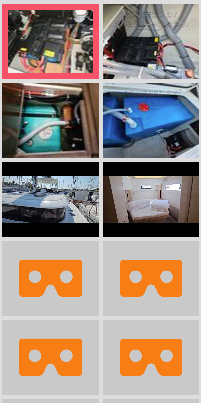
VR images appear in the photo gallery on the listing and are marked with the orange VR icon.
Customers can view them in different ways:
On desktop:
Click and drag the image to look around the boat.
On mobile:
Move the phone to explore the space naturally.
VR video
You can also capture 360° video tours. These allow the broker to explain areas of the boat while the viewer can still look around freely.
Example VR video:
Uploading VR images and videos
Once you have captured your VR media, upload it to the Boatshed Dashboard in the same way as normal photos or videos.
You can upload from:
- Your phone
- Your computer
When uploading VR content, ensure the format is set to:
MONO (not stereo)
Once uploaded, VR images and videos will appear in the listing gallery. You can add, remove, or reorder them at any time.
Best practice workflow for VR content
Following a simple workflow when creating VR media will help ensure your content uploads and displays correctly on the Boatshed platform.
1. Capture the footage
Use a 360° camera such as Ricoh Theta, Insta360, DJI Osmo, or similar.
When filming:
- Keep the camera steady and central in the space
- Move slowly between positions
- Capture key areas of the boat (saloon, galley, cabins, cockpit, deck areas)
For VR video, speak clearly and move the camera slowly between points of interest.
2. Edit if needed
Basic edits such as:
- Trimming clips
- Colour correction
- Joining clips together
can usually be done in the camera manufacturer’s software (DJI Studio, Insta360 Studio etc.).
Using the native software helps preserve the 360° metadata, which makes uploading easier.
3. Export the video correctly
When exporting, ensure the video is exported as:
Panoramic / 360° / Equirectangular video
Recommended settings:
- Resolution: 4K is normally sufficient
- Format: MP4
- 360° metadata: enabled or preserved
4. Upload to the Boatshed dashboard
Upload your VR video using the standard video uploader.
After uploading, check the Organise Videos tab.
If the upload has worked correctly, the file will display a blue label:
“360° VR Video”
5. Review the listing
Once live on the listing page:
- Confirm the video can be rotated by the viewer
- Check the image appears correctly in full 360° view
If the video behaves like a normal flat video, the 360° metadata may be missing.
See the section below for troubleshooting.
Why VR helps brokers
VR tours provide a transparent, complete view of the boat, allowing buyers to look around freely rather than relying only on selected photos. This helps set clear expectations before viewings and reduces misunderstandings about layout or condition. It also creates a visual record of the boat at the time of listing, supporting the broker’s commitment to accurate representation.
Difficulty uploading your VR content?
If a 360° video uploads but does not display as VR, the most common cause is missing spherical metadata in the file.
Some platforms (such as YouTube) automatically detect panoramic footage, but the Boatshed platform expects the 360° metadata to already be embedded in the video.
Quick checks:
1. Export from camera software
If using devices such as DJI Osmo or Insta360, exporting directly from the camera software as a Panoramic / 360° video usually works without issue.
4K resolution is normally sufficient.
2. If you edit the video first
Editing software such as Premiere Pro may remove the 360° metadata during export. If this happens, the platform will not recognise the file as VR.
You can restore the metadata using Google’s Spatial Media Metadata Injector, then upload the corrected file to the dashboard.
3. Confirm the upload worked
In the Organise Videos tab, correctly recognised files will show a blue label:
“360° VR Video”
4. File too large?
Try exporting the video at 4K or 1080p resolution before uploading.
If you have difficulties preparing VR content, contact Boatshed HQ support who can help review the file and upload process.